 Proxy for Telegram
 Proxy for LinkedIn
 Proxy for Ebay
 Proxy for Twitter
 Proxy for TikTok
 Proxy for Tinder
Facebook session expired: what it means and how to fix it
Summary generated by AI:
The Facebook session expired meaning is straightforward: the platform has ended your active login. It’s triggered by inactivity, network changes, app updates, or a security check. This guide covers what it means, why it keeps recurring, and how to fix it on Android, iPhone, and browsers. In our experience troubleshooting this for both personal accounts and business page workflows, the fix almost always lies in one of the steps below.
What does “session expired” mean on Facebook?
If you see the message “Facebook session expired please login again”, it means the platform has invalidated your authentication token, the credential that keeps you signed in. When that token expires, Meta requires a fresh login. This is a security measure, not a sign of an account problem.
The social media platform issues a session token at login, which can be cut short by a password change, an IP switch, or a failed token refresh in an outdated app.
Causes of the “session expired” Facebook error
The most common causes behind a Facebook session expired message:
- Inactivity timeout. FB ends sessions left idle beyond a security-defined window (it doesn’t publish the exact duration), as a precaution against unauthorized access.
- Password change. Updating your password automatically invalidates all active sessions across every device.
- Network or IP change. Switching from Wi-Fi to mobile data, or connecting from a new location, can flag your connection as suspicious.
- Outdated app. Older versions of Meta apps may fail to refresh authentication tokens correctly.
- Corrupted cache or cookies. Stored data from a previous login can conflict with a new one and cause it to fail.
- Browser extensions. Ad blockers, VPNs, or cookie managers can strip the login cookies the platform relies on.
- Multiple active devices. Logging in from multiple devices in quick succession, especially from different geographic locations, triggers FB’s automated security checks and can end older sessions.
- Security updates. Platform-wide policy or security changes can close existing sessions without warning.
Facebook session keeps expiring despite the fixes? Proxy-Seller routes your traffic through a stable ISP IP with clean, dedicated pools, so the platform doesn’t flag your connection and end your session.Buy ISP proxies.
How to fix the Facebook session expired error step by step
If you need to know how to fix session expired on Facebook, work through these eight steps in order; stop as soon as the error clears.
1. Re-login to your account
Go to Facebook Settings > Security and Login > Where You’re Logged In, end all active sessions, then sign in again. This generates a fresh authentication token.
2. Clear cache and cookies
Stale cached data can block a clean login. Open your browser’s privacy settings and delete cookies and cached files for facebook.com.
3. Update or reinstall the Facebook app
Open the Google Play Store or Apple App Store and install any available update for this app. If the error continues, uninstall the app completely and reinstall it fresh.
4. Disable problematic browser extensions
Extensions that block cookies or intercept requests, ad blockers, privacy tools, and VPNs can cause the problem. Disable all extensions, reload Facebook, and test. Re-enable them one by one to find the one causing the problem.
5. Check your network and IP stability
Switch between Wi-Fi and mobile data to test whether the issue is network-specific. If you use shared or public Wi-Fi, your IP may rotate frequently without your knowing.
6. Check date and time settings
Incorrect device time breaks token validation. Enable automatic date and time sync in your device settings.
7. Review active sessions in Facebook security settings
Go to Facebook Settings > Security and Login > Where You’re Logged In. Remove any entries you don’t recognize. If you see an unfamiliar device or location, end it immediately and change your password.
8. Reset your Facebook password
If the error keeps appearing and you suspect unauthorized access, reset your password. This ends all active sessions across every device and forces a clean login. Use a strong, unique password you haven’t used on other accounts.
How to fix Facebook session expired on Android
Android users most often run into Facebook app session expired issues tied to app cache or background data settings.
- Open Settings > Apps > Facebook > Storage.
- Tap Clear Cache, then Clear Data.
- Open Settings > Apps > Messenger > Storage and repeat.
- Go to Settings > Apps > Facebook > Permissions and confirm that internet access and background data are both enabled.
- Open the Google Play Store, search for FB, and install any pending update.
- If the error continues, uninstall Facebook and Messenger, restart your phone, then reinstall both apps from the Play Store.
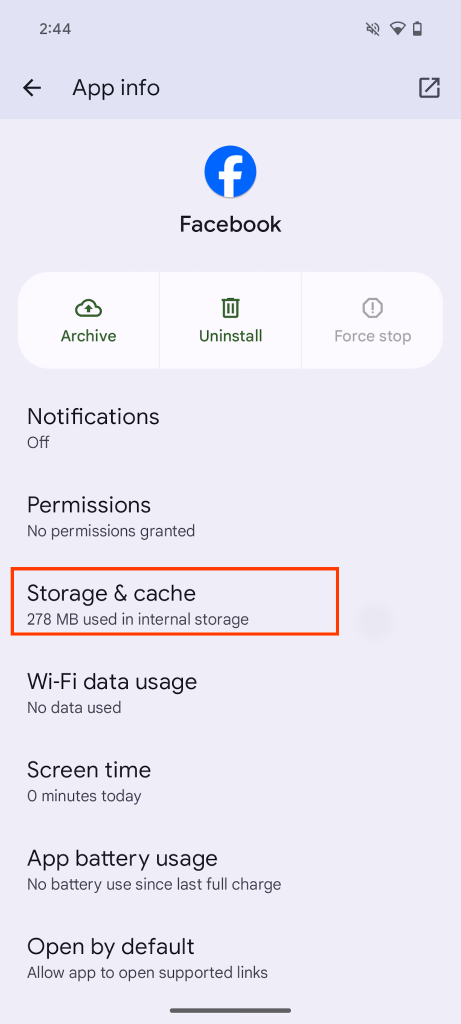
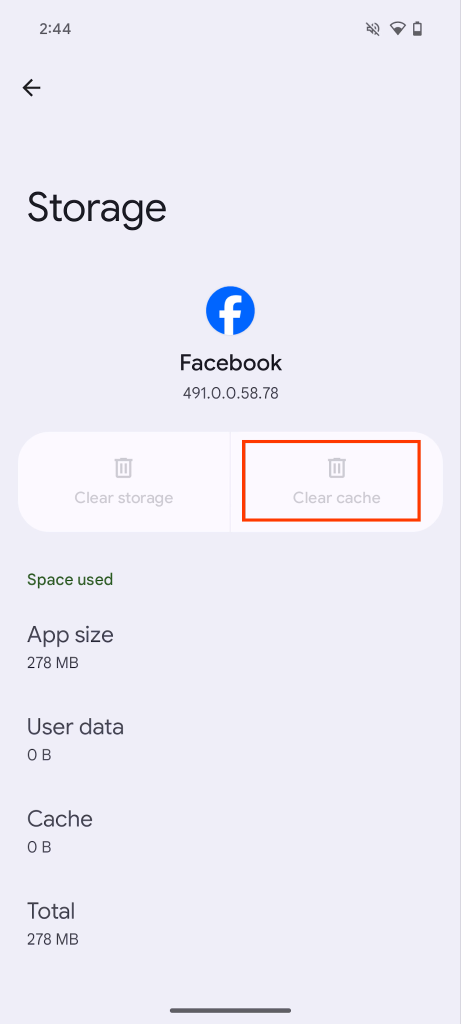
Additionally, check battery optimization settings. Go to Settings > Battery > Battery optimization (or App battery usage). Find Facebook in the app list and set it to “Don’t optimize” or “Unrestricted”. Android power-saving features force-stop backgrounded apps, which forces a re-login and triggers the error even after cache clearing. The exact menu name varies by manufacturer (Samsung, Pixel, OnePlus), but the path is similar.
On some Android versions, “Clear Data” also removes your saved login credentials. You’ll need your email and password to sign in again after this step.
How to fix Facebook session expired on iPhone
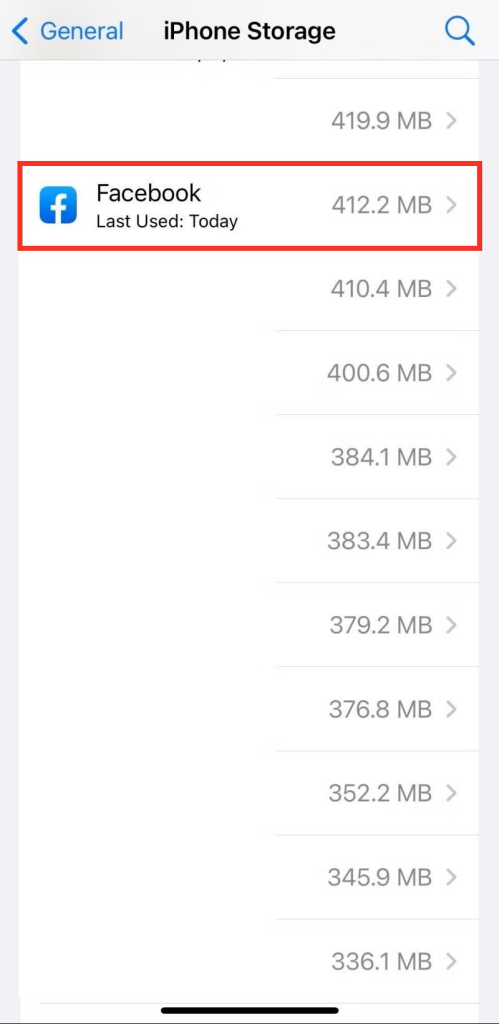
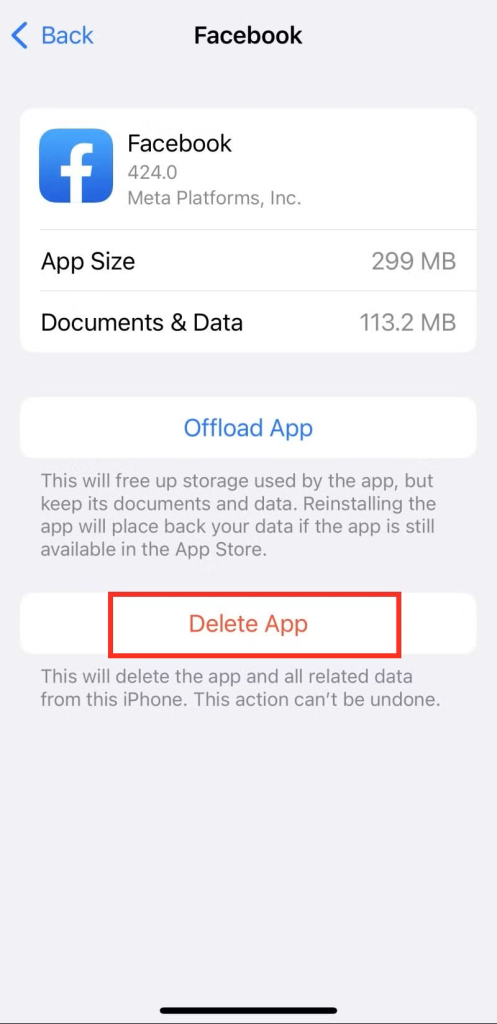
iPhone users can clear the in-app browser cache, but can’t clear the full app cache from iOS Settings. For a complete cache wipe on iOS, the reliable path is a full reinstall.
- Optional first: in the app, tap the three-line menu > Settings & privacy > Settings > Preferences > Browser > tap Clear next to Cookies and cache.
- Open Settings > General > iPhone Storage. Scroll down to locate Facebook. Tap Delete App.
- Repeat for Messenger if installed.
- Restart your iPhone.
- Open the App Store, search for Facebook, and reinstall.
- Go to iPhone Settings > General > Date & Time and enable Set Automatically.
- If you’re on a VPN, disable it before logging back in; VPNs frequently cause Facebook session expired errors on iOS by changing your apparent IP.
How to fix Facebook session expired in a browser
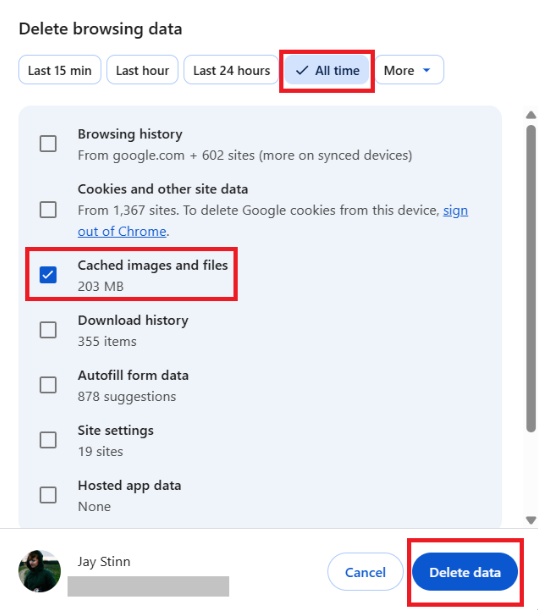
- Open your browser’s Privacy and Security settings.
- Select Delete browsing data (Chrome) or Clear History and Website Data (Safari). Include cookies, cached images, and site data.
- Disable all browser extensions and try logging in to your account again.
- If it works, re-enable extensions one at a time to identify the one causing the session expired Facebook error.
- Try Incognito/Private mode (Ctrl+Shift+N in Chrome and Edge, Ctrl+Shift+P in Firefox and Safari) to confirm whether the issue is extension-related.
- If the error continues in your main browser, try a different one (for example, switch from Chrome to Firefox or Edge).
Why does Facebook keep saying “session expired”?
The Facebook session expired loop is when the error returns within minutes of every fix you try. It usually points to one deeper cause, not a random glitch.
When our support team gets messages like “Facebook keeps logging me out saying session expired Android,” the cause is almost always one of four:
- Corrupted authentication token that keeps regenerating in a broken state
- A bug in the current app version
- Persistent IP change from public Wi-Fi, an unstable connection, or a VPN with rotating IPs
- Malware, usually a keylogger, that clears or replaces your auth cookies as it steals login data
The same four causes explain the loop on iPhone and desktop, not just Android. Work through these steps in order, and stop as soon as the loop breaks:
- Clear the Facebook app cache and data on Android, or clear browser cache and cookies on desktop.
- Uninstall the app and reinstall it.
- Reset your password for this social media to force a new token across every device.
- Run a malware scan on the device you’re logging in from.
If the loop still holds, check whether the platform itself is down. Open the Meta platform status page and this service, which monitors outages on the social media platform, or search “Facebook session expired” on Twitter/X for widespread reports. Wait it out if that’s the cause.
If all four fixes and the outage check are done and the loop is still active after 24 hours, contact support.
How to maintain session stability and security
- Enable two-factor authentication (2FA) in FB Security settings. It adds a second verification layer without shortening how long you stay signed in.
- Keep the Facebook app and your device OS updated. Bugs in older versions are among the most common causes of session failures.
- Avoid logging in on public or unsecured Wi-Fi without a stable connection. Frequent IP changes reliably trigger forced logouts.
- Limit third-party apps and browser extensions connected to your Facebook account. Each one is a potential point of interference with your login state.
- Use a password manager to keep credentials secure, and change your password periodically to clear any unauthorized sessions.
Is “session expired” on Facebook a sign of being hacked?
Not always. Searches for “session expired Facebook hacked” usually have a simple explanation: Facebook session expired errors result from inactivity, a password change, or a network switch. If the error appears frequently without those triggers, check for unauthorized account access.
Signs of a potential breach rather than a normal timeout: a login notification from an unfamiliar device; unrecognized sessions in Security and Login; a password change you didn't make; or friends reporting messages you didn’t send.
If any of these apply, take these steps right away:
- Reset your Facebook password using a strong, unique credential not used elsewhere.
- Enable two-factor authentication if it isn’t already active.
- Review active sessions in Security and Login and end all sessions you don’t recognize.
- Scan your device for malware. Credential-stealing software can cause repeated forced logouts by clearing or replacing authentication cookies without your awareness.
Where to find official Facebook support and resources
If the error persists after all steps above, visit this page for current guides or use Help > Report a Problem in the app.
You can also try the following:
- Join Facebook Community forums to see how others fix issues.
- Report problems via app or website: Settings > Help & Support > Report a Problem.
- Use the official business help center for API and token issues.
- Check Facebook Developer Docs on OAuth and session management.
Future prevention measures
- Log in only from trusted devices. Unfamiliar device connections trigger Facebook’s security checks and increase forced logout frequency.
- Don’t share your credentials. Multiple users logging into the same account from different IP addresses will reliably cause session conflicts.
- Review your login history monthly. A regular check of Security and Login lets you catch unusual activity before it escalates to repeated session-expired Facebook errors.
How proxies help prevent Facebook session errors
From what we see with customers running multi-account or shared-network setups, the cause is almost always IP instability, especially if you manage brand pages or business accounts across multiple devices or scrape data. For those exploring effective web scraping tools, this resource provides a detailed breakdown of the top solutions.
Facebook treats a consistent IP as legitimate activity. When your IP rotates frequently, the platform flags it as suspicious and terminates the session. One of the solutions is to choose the right type of proxy and, most importantly, the right type of rotation. If the task requires residential proxies, it’s best to set up sticky sessions and avoid frequent IP changes. A stable, static IP from an ISP proxy removes that trigger.
Proxy types suited for stable Facebook sessions:
- Residential proxy: uses a real home IP address, ideal for regular account management where a stable, real-user IP prevents suspicious-connection flags
- Mobile proxy: routes through a 4G/5G carrier IP, best for mobile app workflows and managing business pages or brand accounts across devices
- ISP proxy: static IP issued by a real ISP, suited for long-term stable sessions and API access
- Datacenter proxy (IPv4 / IPv6): high-speed option for large-scale automation where IP trust level is less critical
Stop session errors from IP instability: Proxy-Seller provides residential, ISP, and mobile proxies with a stable, consistent IP, so Facebook doesn’t flag your connection and terminate your session. Buy proxy for Facebook.
Conclusion
In our experience, a Facebook session expired fix almost always takes just several minutes. Recommended sequence:
- Log out fully and back in.
- Clear browser cache or Android app cache.
- Reinstall the app on iPhone.
- Reset your password only if steps 1-3 don't hold.
If you're performing professional tasks using IP address rotation, choose static pools or residential IPs with sticky sessions. Proxy-Seller offers fast private SOCKS5 and HTTPS proxies with up to 1 Gbps channel.
If the error still returns after all four, treat it as either a Facebook backend outage (check Meta status page) or a security event on your account (review active sessions, run a malware scan, enable 2FA). Persistent errors after both checks are rare and worth escalating to support.
FAQ
What does session expired mean on Facebook?
A Facebook session expired error means the platform has invalidated your authentication token, the credential that keeps you signed in without re-entering your password. The token can expire due to inactivity, a security event like a password change, or a network switch, ending the session and requiring a fresh login. It’s standard security behavior, not a bug, and the exact token duration isn’t publicly documented.
Why does my Facebook keep saying session expired?
The error repeats when something keeps invalidating your authentication token. Common culprits: an unstable network switching between Wi-Fi and mobile data, corrupted cache, an outdated app version, ad blockers or privacy extensions stripping cookies, Android battery optimization force-stopping the app in the background, or a security event like a password change or new-location login.
How do I fix the Facebook session expired loop?
Work through four steps in order: clear the app cache and data on Android or reinstall the app on iPhone, change your password to force a new authentication token across all devices, run a malware scan to rule out keyloggers replacing your cookies, and install any available app update. If the loop still holds, contact support.
Is Facebook session expired a sign of being hacked?
Not necessarily. Most cases come down to inactivity, network changes, or a corrupted app cache. Treat it as a hacking sign only if you also see login notifications from unfamiliar devices, unrecognized entries under Security and Login, a password change you didn’t make, or friends receiving messages you didn’t send. In that case, reset your password, enable 2FA, and end every active login.
Why does the Facebook app keep saying session expired on Android?
On Android, this usually comes down to corrupted cached data or aggressive battery optimization. First: Settings > Apps > Facebook > Storage, then Clear cache and Clear data. Second: Settings > Battery > Battery optimization > Facebook > set to Don’t optimize, so the OS stops force-stopping the app in the background. If the error still returns, update via Google Play or uninstall and reinstall.
What does “message expired” mean on Facebook Messenger?
“Message expired” in Messenger is a separate error from the login timeout this guide covers. It appears when an end-to-end encrypted or disappearing message has passed its retention window, or when trying to open an old, no-longer-available conversation. It’s a Messenger-side message behavior, doesn’t affect your login state, and needs no re-authentication or password reset.